Signature Fields (Waivers & Consent)
Events Manager Pro includes a signature field type for booking, attendee, and user forms. Use it to collect a legally-meaningful signature for liability waivers, medical or photo consent, terms and conditions, or any situation where you need proof that a specific person agreed to specific wording at a specific time.
Each signature is stored with a full audit record: the exact wording that was signed, the signer's name and email, a timestamp, their IP address and browser, and confirmation that they agreed to sign electronically. If the record is ever altered, Events Manager will detect it and flag it as tampered.
Events Manager gives you the mechanism to capture and verify a signature. It does not tell you what your waiver should say, and it does not guarantee that an electronic signature is sufficient for your activity, jurisdiction, or insurer. Always have your waiver wording reviewed by a qualified lawyer.
Adding a signature field
Signature fields can be added to booking forms, attendee forms, and user (registration) forms from Events → Forms Editor. For a waiver, the attendee form is usually the right place — it captures a separate signature for every person on the booking, not just the account holder.
Add a new field, give it a label, and choose signature as the type. This reveals a dedicated options panel:
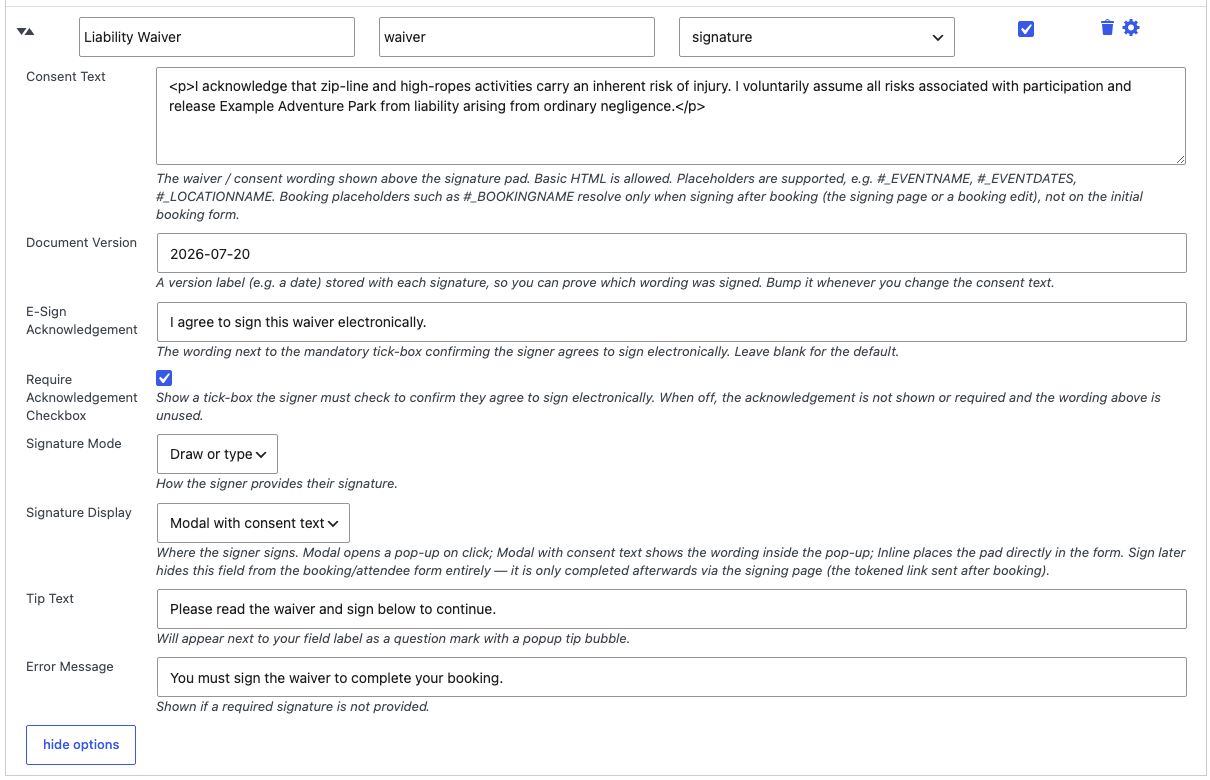
- Consent Text — the waiver or consent wording shown to the signer. Basic HTML is allowed, and placeholders such as
#_EVENTNAME,#_EVENTDATESand#_LOCATIONNAMEare supported. - Document Version — a version label (a date works well) stored with every signature, so you can prove exactly which wording someone signed. Bump this whenever the consent text changes.
- E-Sign Acknowledgement — the wording shown next to the mandatory tick-box confirming the signer agrees to sign electronically. Leave blank to use the default wording.
- Require Acknowledgement Checkbox — when enabled (the default), the signer must tick that box before they can apply their signature.
- Signature Mode — Draw or type, Draw only, or Type only.
- Signature Display — Modal (a pop-up opens when clicked), Modal with consent text (the wording appears inside the pop-up), Inline (the pad sits directly in the form), or Sign later (see below).
- Tip Text / Error Message — the usual per-field tooltip and required-field error message.
What the visitor sees
By default the field shows a "Click to sign" box on the form:

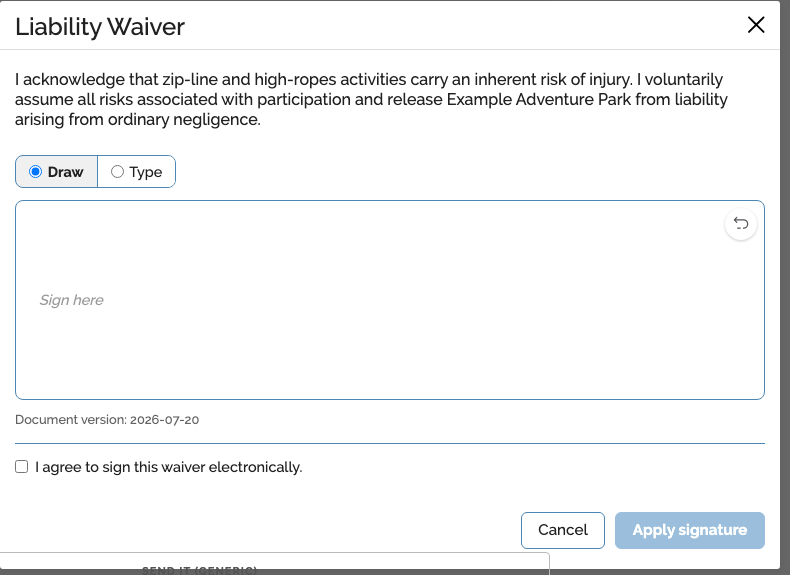
Clicking it opens the signing pad. If Signature Mode allows drawing, the visitor can sign with a mouse, trackpad, or finger:
If typing is allowed, the visitor can type their name instead and choose from a few handwriting-style previews:
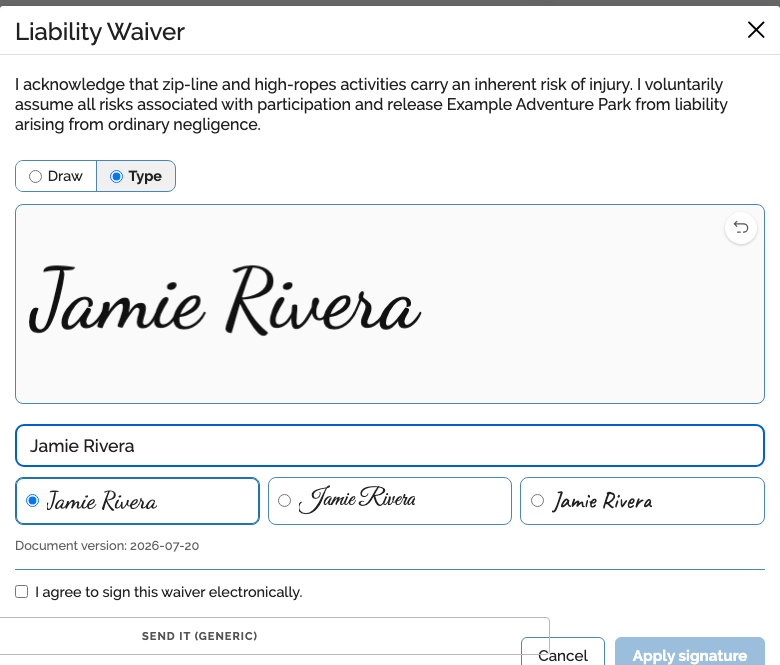
Once they tick the e-sign acknowledgement and apply the signature, the field shows a preview of what was signed, with an edit icon to redo it before submitting:

If the field is marked Required, the booking form cannot be submitted until it's signed.
Verifying a signed booking
Every signed field on a booking shows its full audit record in the admin booking screen, under Advanced information:
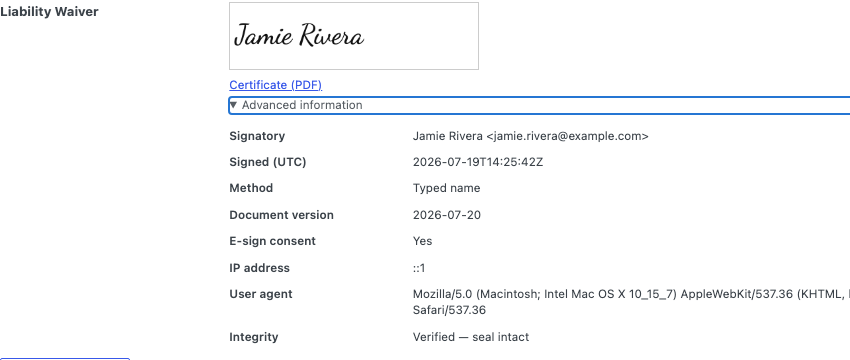
This includes the signatory's name and email, the UTC timestamp, whether they drew or typed their signature, the document version they signed, their e-sign consent, IP address, and user agent. The Integrity row re-verifies the record every time the page loads — if any of the stored data has been altered since signing, it will show as failed rather than verified. A downloadable PDF certificate is also generated for each signature.
If a required signature hasn't been provided yet, the same spot shows Not signed with a Sign now link instead.
Signing after booking ("Sign later")
Some waivers are easier to complete after checkout rather than holding up the payment flow — for example, a long attendee-form waiver for each guest on a group booking. Setting Signature Display to Sign later hides that field from the initial booking or attendee form entirely; it isn't required to complete the booking.
Instead, use the #_BOOKINGSIGNATUREURL placeholder in your booking confirmation email (or the booking/my-bookings page) to send the signer a secure link where they can complete every outstanding signature on their booking in one place. Wrap it in the conditional tags so the link only appears when something is actually outstanding:
{booking_has_unsigned_signatures}
Please complete your waiver before the event: #_BOOKINGSIGNATUREURL
{/booking_has_unsigned_signatures}
The placeholder resolves to nothing once every signature on the booking has been completed, so it's safe to leave in a template permanently.
Signature emails
Under Events → Settings → Emails, the Signature Emails section lets you attach signed signature images to the booking confirmation email (sent to the registrant), the admin notification email, or both, and lets you customise the subject and body of the dedicated "signature completed" emails sent to each.
What this feature does not do
- It does not supply waiver or consent wording — you write and maintain that yourself.
- It does not judge whether an electronic signature is legally sufficient for your activity or location.
- Retention/auto-delete of the signature image (keeping the audit record but discarding the image after a set number of days) is an advanced capability that isn't exposed by default; it's off until a site enables it at the code level.