Google Maps
Google Maps has limited free usage quotas/limits, if you go over this usage value, you will be billed for service usage. See our recent announcement for more information about the new pricing changes for Google Maps API.
When you add or edit locations, a Google map should appear and adjust itself automatically as you fill out the location information. The information you type is sent to the Google Maps API which automatically determines your location coordinates on the map, so try and enter as much accurate information as possible (e.g. address, town, country). Once you fill in your information, you can also drag the position marker on the map to pinpoint the exact location if needed.
Then, you need to add a #_LOCATIONMAP placeholder in one of the format options in the settings page wherever you would like to show your map. By default, maps are set to show on Location and Event pages.
Setup Instructions
1. Set up your Google Cloud Platform Account
You will need to sign up for a new Google API account (if you don't have one already), enable certain API libraries and obtain an API key to display maps on your site. See our setup instructions.
2. Enable Google Maps for your site
To enable/disable maps in Events Manager, go to Events > Settings > Google Maps & Location Services in the admin panel and set Enable Google Maps integration? as needed.
You must also enter the API Browser Key you obtained whilst setting up your Google API Account in Step 1.
3. Optimize and Manage your API Usage
The Google Maps API is not free, although there is a monthly free usage allowance in the form of a $200 credit. It's important that you learn how to optimize and manage your API usage to minimize your usage costs.
Please read up on our new map load types, what APIs we use and how to optimize API usage.
Further Configuration
You can edit the balloon content for dynamic maps in Events > Settings > Formatting > Maps. There are two different balloons you can customize, one being the balloon shown on a single location map, and the other is the balloons shown when viewing the global map which displays multiple locations at once.
You can also set the default width and height of maps, which can be in pixels or percentage.
Map Styling
Customize the styles of your maps by visiting Events > Settings > Formatting > Maps > Google Maps Style and entering a JSON style format. You can give your maps a unique look to stand out or match the style of your site, here's an example:
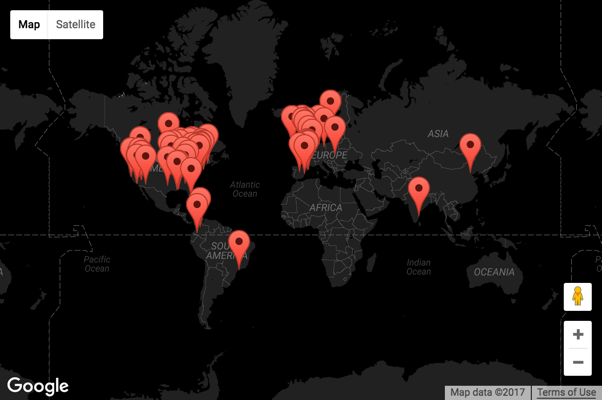
Google Maps JSON styles can be created from Google's Map Style Wizard or a service like Snazzy Maps which has a library of free templates as well as a custom style builder. On both of these sites, you can copy their generated JSON code to your clipboard, and then paste it into the Google Maps Style text box.
Additionally, you can provide custom styles to specific maps generated with the events_map and locations_map shortcodes. This can be done by supplying a base64 encoded version of JSON code within the map_style attribute. This requires an extra step of encoding your JSON code, there's plenty of free online encoders such as this one: https://www.base64encode.org/
Your shortcode would look similar to this:
[locations_map width="100%" map_style="Ww0KICB7DQogIC....ogIH0NCl0="]
Known Issues
If you have Google Maps deactivated, but then decide to reactivate in the future, you need to revisit the locations you created whilst maps was deactivated and save them again. When you open locations with Google Maps enabled it should automatically detect your address even if coordinates weren't previously saved.
Maps will not load and/or I see an exclamation mark as below:
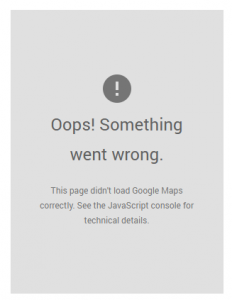 This means that you need to add your API key, or you have not properly configured one. Please follow our instructions for adding a Google Maps API Key.
This may also happen if your theme or another plugin loads a Google Maps library before us without adding an API key to their settings. Since we can't load the library twice, the original loading plugin or theme needs to allow for API keys to be used too. To verify this, once you've gone through all the troubleshooting steps to add your API key to our settings page and it's still not working, try loading your site with a default WP theme and other plugins disabled as well.
For example, the Divi theme also has a setting to add your Google API key, and copying the key used for Events Manager into their settings will fix the issue.
When adding a new location, the map shows a grey Loading Map… that doesn't go away. What's wrong?
Most likely you have a javascript issue, and most commonly it's one of three things:
- Your theme has some bad javascript that breaks the rest and prevents Google Maps from loading
- You have a plugin that's conflicting with ours or breaking javascript like above
- Your theme does not use the wp_head function, and so the required javascript isn't being loaded.
My the position on the map is not correct.
When entering an address, if the map doesn't find it, try writing the address differently. Events Manager takes your address + town + state + postcode + country and submits it to Google for a location. If your address works on maps.google.com then it should work on Events Manager. Additionally, for finer precision you should be able to drag the map position marker to the exact place you want to focus on.