Mobile App Notifications
The Events Manager mobile app can send a push notification to your phone or tablet the moment something happens on your site: a new booking comes in, a booking is cancelled, or a new event is published. You decide, as a site administrator, which types of notification are available, and each person then chooses the ones they want from inside the app.
This page covers how to switch the feature on for your site and how each user turns on the notifications they care about. The app is available for iOS and Android; see mobile apps for how to install it and connect your site.
What you can be notified about
Events Manager has three built-in notification types:
| Notification | When it is sent | What the message says |
|---|---|---|
| New bookings | Someone makes a booking on one of your events | "New booking received" |
| Booking cancellations | A booking on one of your events is cancelled | "A booking was cancelled" |
| New events | A new event is published on your site | "A new event was created" |
In every case the title of the notification is the event's name, so you can see which event it relates to without opening the app. Tapping a notification opens the app.
Add-ons can register further types. Anything Events Manager Pro or another extension adds appears in these same settings automatically, with no app update needed.
Before you start
To receive push notifications you need:
- The Events Manager mobile app installed on your device, with your site added to it.
- Notifications switched on for the site by an administrator (Step 1 below).
- A WordPress account on the site with permission to manage the relevant bookings or events.
- Notifications allowed for the app in your device's own settings. The app asks for this the first time you turn notifications on.
In-app notifications are available on sites running an Events Manager Pro licence, or with an app subscription.
Step 1: Turn on notifications for your site
An administrator does this once, in WordPress.
- Go to Events → Settings → General and find the Mobile App Notifications section.
- Set Enable push notifications? to Yes.
- Under Notification types, choose which notifications are available on this site. Each type has its own Yes/No, so you can offer some and not others.
- Save your changes.
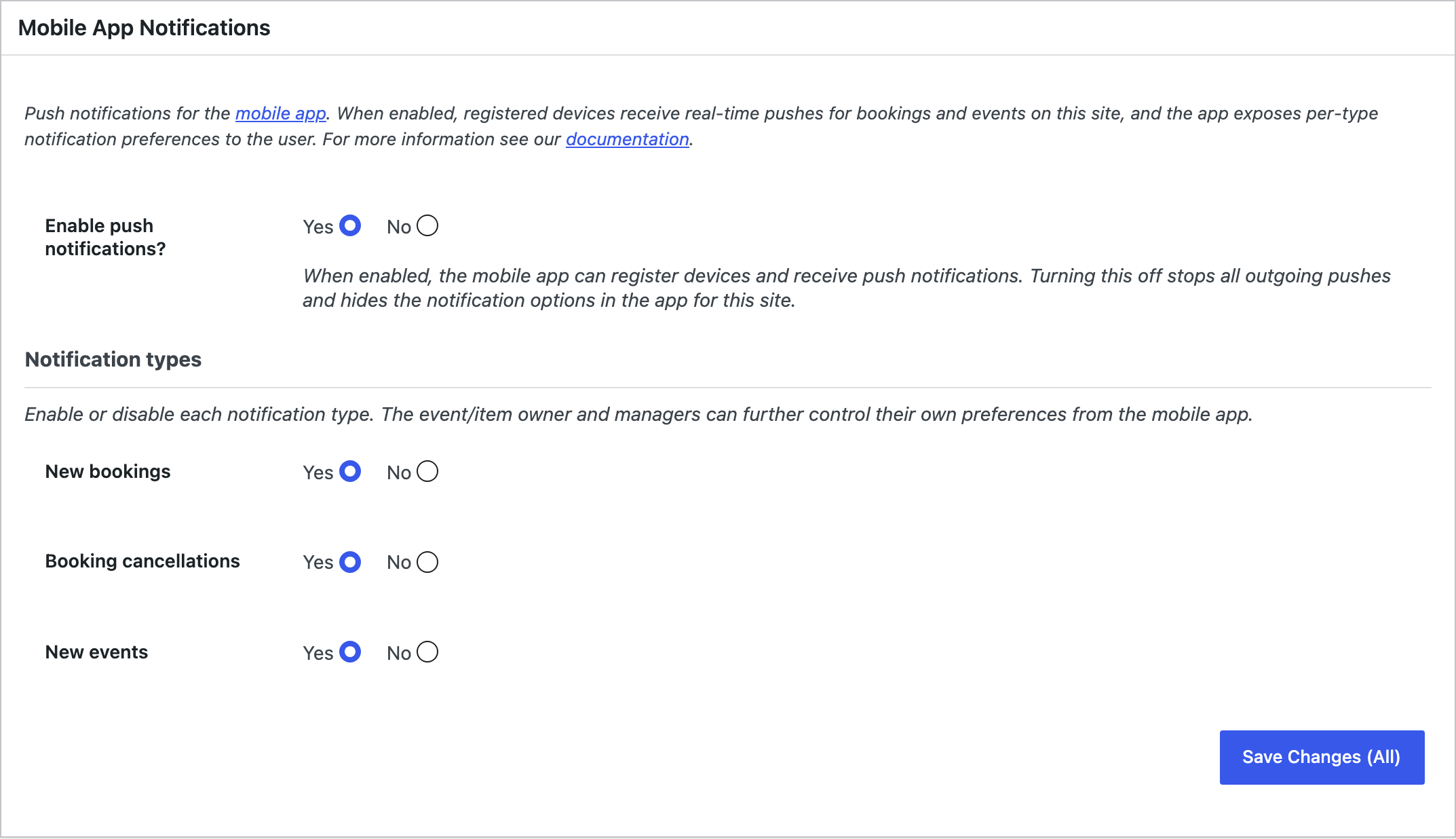
The types you switch on here decide what is available on the site. Each user still picks which of those they personally receive, in the app.
Turning the main switch off again stops every notification for the site and hides the notification options in the app. Turning a single type off stops that one type for everyone, whatever their personal preference.
Step 2: Turn on notifications in the app
Everyone who wants notifications does this on their own device.
- Open the Events Manager app and choose the site you want from the Sites screen. Notification settings apply to whichever site is active, so switch sites here to set up another.
- Open the Notifications tab.
- Turn on Allow notifications. The first time you do this, your device asks for permission to send notifications: choose Allow.
- Turn on each notification type you want. Where you manage other people's bookings or events, a second switch appears so you can include those too (see below).
Your choices are saved to the site straight away and remembered on your device.
Who receives what
Notifications follow the same permissions as the rest of Events Manager, so people only ever receive notifications for things they are allowed to manage.
- Event owners are notified about their own events and the bookings made on them.
- Managers and administrators who can manage other people's bookings, or edit other people's events, see an extra switch on each notification type. Switch it on to also be notified about bookings and events that belong to other users, not only your own. This suits a central organiser or moderator who oversees everyone's events.
If your account has no permission for a given type, that type does not appear in your app and you will not receive it.
Notifications across more than one site
The app can be connected to several Events Manager sites at once. The master Allow notifications switch and your per-type choices are set separately for each site, so you can have them on for one site and off for another. Each site's administrator controls which types are available on their own site.
Booking information never leaves the site it belongs to. Each site sends its own notifications directly to your device, so nothing is routed through a third party.
Troubleshooting
I turned notifications on but nothing arrives. Work through these in order:
- Check that an administrator has set Enable push notifications? to Yes under Events → Settings → General, and that the type you expect is switched on there.
- Check that Allow notifications is on for that site in the app, and that the individual type is turned on.
- Check that notifications are allowed for the app in your device's own settings. If you declined the first time, the app cannot show them until you enable them there.
- Confirm your account has permission to manage the bookings or events in question. You only receive notifications for events you can manage.
The Notifications tab asks me to upgrade. In-app notifications need an Events Manager Pro licence on the site, or an app subscription. The app shows the available plans.
The app says the site doesn't support notifications yet. Make sure the site is running a version of Events Manager that includes app notifications and that it can be reached, then reopen the Notifications tab.